
Sending still works, receiving does not, and it started the exact day nameservers changed. That timing is the whole diagnosis. Nameservers control where a domain’s entire DNS zone lives, and MX records, the specific records that tell the internet where to deliver a domain’s email, live inside that same DNS zone. Moving nameservers away from Bluehost, commonly to Cloudflare for its CDN and security features, does not move the MX records that were pointing to Bluehost’s mail servers along with it. The new nameserver provider starts with an empty or default DNS zone, and unless MX records are manually recreated there, incoming mail has nowhere correct to be delivered, even though the mailbox itself still exists and functions perfectly on Bluehost’s side.
This is a genuinely counterintuitive failure mode for anyone who has not encountered it before, since the natural assumption when a technical service breaks after a configuration change is that the change itself was somehow done incorrectly. In this specific case, the nameserver change itself is usually done entirely correctly, following the exact steps a registrar or DNS provider’s own instructions describe. The problem is not an error in how the change was performed, it is something the change instructions typically never mention at all: that a nameserver change carries none of the old DNS zone’s content forward automatically, and any record type not specifically identified and recreated at the new provider simply ceases to exist from the internet’s perspective, regardless of how correctly it once worked at the old provider, a gap that catches even technically capable site owners off guard the first time they encounter it.
This article covers exactly this scenario: why sending frequently continues working while receiving breaks specifically, what the correct MX record values actually are depending on whether the domain uses Bluehost’s own OX Mail service or a legacy cPanel-based email setup, the specific SPF and DKIM records that need to move alongside the MX record rather than being forgotten separately, and the exact steps to verify and fix this in Cloudflare’s dashboard specifically, since Cloudflare is the most common destination when someone changes nameservers away from Bluehost.
Why sending works but receiving breaks, specifically
This asymmetry confuses a lot of people encountering it for the first time, since it seems logical that a broken email setup would break everything at once rather than half the system. The explanation is that sending and receiving mail depend on different DNS lookups, and a nameserver change can affect one without affecting the other depending on exactly what got carried over and what did not.
Outgoing mail sent through Bluehost’s own webmail interface or through an email client still authenticated directly against Bluehost’s SMTP servers using the mailbox’s own username and password, a connection that does not depend on the domain’s public DNS records at all once the client or webmail session is already configured and connected. This is why a site owner can often still send mail successfully immediately after a nameserver change, creating a false impression that the email system as a whole is working normally, right up until someone tries to reply and that reply never arrives.
It helps to think of this in terms of what each direction of the email flow actually needs to know versus already knows. An email client that was already set up before the nameserver change already has the mail server’s hostname and login credentials stored locally, from the original setup, and it uses that stored information directly on every send rather than looking anything up fresh in DNS at the moment of sending. Nothing about a nameserver change touches that locally stored configuration at all, which is precisely why sending continues working seamlessly through an already-configured client or webmail session, completely independent of whatever has happened to the domain’s public DNS zone in the meantime.
Incoming mail works completely differently. When another mail server anywhere on the internet needs to deliver a message to your domain, it performs a fresh DNS lookup for your domain’s MX record to find out which mail server is actually responsible for accepting mail for that domain, every single time, for every message. If the nameservers changed and the new DNS zone does not contain the MX record pointing to Bluehost’s mail servers, that lookup either fails outright or returns nothing usable, and the sending server has no correct destination to deliver to. Depending on the sending server’s own configuration, the message either bounces back to the sender immediately with a clear delivery failure notice, or queues silently for a period before eventually bouncing, which is exactly the pattern described in a widely referenced Cloudflare community report of sent messages arriving fine while replies eventually bounce back as undelivered.
It is worth being precise about why this particular failure mode, silent queuing followed by a delayed bounce rather than an instant, obvious error, is so common specifically after a nameserver change rather than a more clear-cut DNS mistake. Many sending mail servers are configured to retry a temporarily unreachable destination several times over a period of hours before giving up and generating a bounce notice, since a genuinely temporary network hiccup at the destination is common enough that giving up on the very first attempt would cause unnecessary lost mail. A missing MX record does not always look like a permanent failure to the sending server on the first attempt, it can initially resemble a temporary lookup glitch, which is precisely why the bounce notice for a reply sent the same day as a nameserver change often does not arrive until hours later, well after the site owner has already moved on assuming everything is fine because the original outgoing message appeared to work.
This delayed bounce pattern has a genuinely unfortunate practical consequence for anyone troubleshooting the problem in real time: the very first symptom most people notice is not a clear error message pointing at the actual cause, it is simply the absence of an expected reply, discovered hours or sometimes a full day after the fact, by which point the person managing the domain may have already moved on to unrelated tasks and no longer connects the missing reply back to a DNS change made earlier that day. This is precisely why checking the timing correlation, whether the receiving problem started on the exact date of a known nameserver change, is worth doing explicitly and deliberately rather than assuming it is obvious, since the delayed nature of the symptom actively works against that connection being made intuitively, especially for a business owner without a technical background who has no particular reason to associate a DNS change with an email problem surfacing hours or days later.
Finding the correct MX record values for your specific Bluehost setup
Bluehost has migrated many accounts to OX Mail as its current webmail and email hosting platform, replacing the older cPanel-based email system still present on some legacy accounts, and the correct MX record values differ depending on which system a given account actually uses. Before recreating any records at the new nameserver provider, confirming which email system the domain is actually on, by logging into the Bluehost account dashboard and checking the Email section, avoids the common mistake of copying MX record values from a generic online guide that assumes the wrong underlying email platform.
The distinction between these two systems is not merely a naming difference internal to Bluehost, it reflects two genuinely different architectures for how mail is actually processed and stored. Legacy cPanel email hosting runs the mail service on the same physical server as the website itself, sharing resources with the web hosting environment, which is why its MX record points directly at the hosting server. OX Mail, by contrast, is a centralized, dedicated email platform that Bluehost operates separately from individual customers’ web hosting infrastructure, which is why its MX records point to shared OX Mail infrastructure hostnames rather than to any individual customer’s specific hosting server. This architectural difference is also why an account migrated to OX Mail generally sees more modern webmail features and better mail-specific reliability than the older cPanel-based system, since a dedicated mail platform can be optimized specifically for mail delivery in ways a shared web-and-mail server cannot, an improvement most account holders notice as a side benefit of the migration even when the migration itself was primarily framed around infrastructure modernization rather than any specific feature request.
For accounts still on Bluehost’s legacy cPanel-based email hosting, the MX record typically needs to point directly to the domain’s own hosting server, often expressed as the domain name itself with an MX priority value, since cPanel-based email hosting is tied directly to the same server as the website itself rather than a separate, centralized mail platform. For accounts migrated to OX Mail, Bluehost publishes a specific set of MX record hostnames pointing to its centralized OX Mail infrastructure rather than to the individual hosting server, and these values are the same across most OX Mail accounts regardless of which specific server the website itself happens to be hosted on. Because these two setups require genuinely different MX record values, checking which system is active in the Bluehost dashboard before recreating anything at the new DNS host is not an optional step, it is the specific piece of information that determines what values to enter.
The most reliable way to find the exact, currently correct values for your specific account is checking Bluehost’s own current knowledge base article on MX records directly, or contacting Bluehost support and asking specifically for the MX record values for the domain’s current email setup, rather than relying on a value copied from an older forum post or a generic troubleshooting guide, since Bluehost has changed its underlying email infrastructure more than once and older published values may reference decommissioned mail servers that will not accept mail even if entered exactly as written.
It is also worth confirming whether the domain uses a single mailbox or multiple mailboxes across different subdomains, since a business that has set up a separate support or sales subdomain with its own distinct email routing, for example a helpdesk platform receiving mail at a support subdomain while general mail routes to the main domain, needs the MX record configuration recreated correctly for each subdomain independently rather than assuming a single MX record fix at the root domain automatically covers every mail-receiving subdomain the business has configured over time. This is easy to overlook precisely because the main domain’s mail can be fully restored and tested successfully while a secondary subdomain’s mail routing remains silently broken, since nobody happened to test that specific address during the initial troubleshooting pass.
Related comparisons on this site:
1. SSL certificate shows not secure after renewal on Hostinger
2. HostGator vs iPage shared hosting comparison
3. Hosting for Mailcow self hosted email
4. Namecheap vs Porkbun domain registration compared
5. Hosting account exceeded inode limit
More hosting intelligence
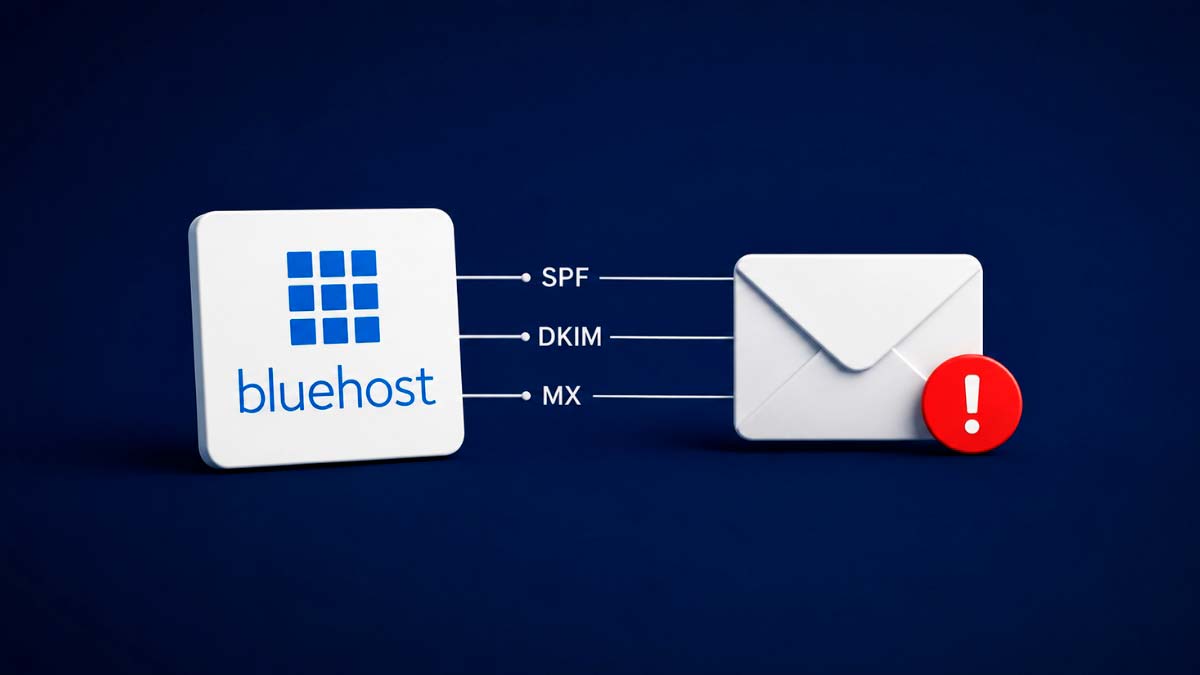
SPF and DKIM: the records that break silently alongside MX
The MX record is not the only DNS record involved in reliable email delivery, and a nameserver change that only recreates the MX record while leaving SPF and DKIM behind will fix the immediate receiving problem while introducing a new, less obvious deliverability problem that surfaces gradually rather than immediately. SPF, or Sender Policy Framework, publishes which mail servers are authorized to send mail on behalf of a domain, and DKIM cryptographically signs outgoing messages so a receiving server can verify they were not altered and genuinely originated from the claimed domain.
If Bluehost’s mail servers are sending your outgoing mail but the SPF record at the new nameserver provider does not list Bluehost as an authorized sender, because that SPF record was never recreated after the nameserver change, receiving mail servers on the other end will increasingly treat your outgoing mail as suspicious over time, since it appears to come from a server the domain’s own published policy does not authorize. This does not necessarily cause an immediate, obvious failure the way a missing MX record does. Instead, it tends to produce a slow, creeping deliverability problem: a growing percentage of outgoing mail lands in recipients’ spam folders rather than their inbox, without any clear error message pointing back to the actual cause, since the mail is technically being delivered, just increasingly distrusted by the receiving server’s own spam filtering.
This gradual onset is exactly what makes a missing SPF record more dangerous in practice than a missing MX record, despite being the less urgent-feeling problem at first glance. A missing MX record produces an immediate, unmistakable symptom, mail simply does not arrive at all, which practically forces a fix within days because the business cannot function without receiving email. A missing SPF record produces no symptom at all for days or weeks, then a slowly worsening pattern of important client emails landing in spam folders on the receiving end, discovered only when a client mentions they almost missed an important message, or not discovered at all until it has already cost the business a missed opportunity or a frustrated client wondering why their emails were never answered.
This particular risk is worth flagging explicitly for a law firm or professional services business specifically, where a single missed client email genuinely carries meaningful reputational or even legal consequence, in a way it might not for a lower-stakes consumer business. A firm whose deliverability has quietly degraded due to a forgotten SPF record after a nameserver migration may not notice anything is wrong for weeks, all while a percentage of client correspondence, potentially including time-sensitive matters, sits unread in spam folders on the client’s end. This is precisely the kind of slow-building, hard-to-detect risk that argues strongly for treating the full DNS record migration, MX, SPF, and DKIM together, as a single required checklist rather than fixing the MX record alone and considering the migration complete once mail visibly starts arriving again, since visible receiving success says nothing at all about whether outgoing deliverability has quietly degraded in parallel.
Recreating SPF and DKIM records correctly requires the exact current values from Bluehost’s own account settings, typically found in the same Email section of the Bluehost dashboard where the MX record values are confirmed, since these values are specific to Bluehost’s mail infrastructure and cannot be guessed or copied from a different provider’s documentation. A domain using OX Mail specifically will have its own DKIM selector and public key value that needs to be published as a TXT record at the new nameserver provider, and this value is unique enough that it must be retrieved directly from the Bluehost account rather than assumed to match any generic template.
A useful verification step once SPF and DKIM records have been recreated is running the domain through an independent email authentication checking tool rather than simply trusting that the records were entered correctly by visual inspection alone. These tools query the domain’s published SPF and DKIM records directly and report whether they parse correctly and reference a plausible, currently valid configuration, catching typos or formatting errors in the TXT record value that might otherwise go unnoticed until an actual delivery problem eventually surfaces weeks later. This verification step takes only a couple of minutes and provides considerably more confidence than assuming a copy-pasted value was entered correctly simply because no error appeared when saving the record in Cloudflare’s own interface.
It is worth running this same verification a second time roughly a week after the initial fix, rather than only once immediately after making the change, since some deliverability effects of a corrected SPF or DKIM record take a short period to fully propagate through the reputation systems that major mail providers like Gmail and Outlook maintain independently of DNS propagation itself. A domain’s outgoing mail reputation with a specific large mail provider can lag slightly behind the DNS records themselves being technically correct, so confirming actual inbox placement, rather than just spam folder placement, with a real test message sent to an account at each major provider a business’s clients commonly use, provides a more complete picture than checking DNS record correctness alone, and gives genuine peace of mind that the fix has fully taken hold rather than only appearing correct on paper.
Recreating these records in Cloudflare specifically
Cloudflare is the most common destination when someone changes nameservers away from Bluehost, typically to take advantage of Cloudflare’s CDN, DDoS protection, and DNS performance benefits, and the practical steps to recreate the missing email records there are straightforward once the correct values have been retrieved from Bluehost. From the Cloudflare dashboard, selecting the domain and navigating to the DNS section shows the current DNS zone, which after a fresh nameserver change typically shows only the records Cloudflare’s own migration tool was able to automatically detect and import, frequently missing MX, SPF, and DKIM records specifically since these are less consistently auto-detected than basic A and CNAME records during a nameserver migration.
It is worth understanding briefly why Cloudflare’s automated migration scan handles these record types inconsistently, since it explains why this specific gap recurs so predictably across different migrations rather than being an occasional fluke. Cloudflare’s scan works by querying the domain’s existing DNS records at the old nameserver before the switch completes, attempting to replicate that same zone at Cloudflare automatically. This works reliably for straightforward, commonly configured record types like A and CNAME records pointing to a website, but MX, SPF, and DKIM records are more variable in structure and sometimes sit behind email platform-specific configuration that a generic DNS scan does not always capture completely or correctly, particularly for a centralized platform like OX Mail whose specific record values are not necessarily discoverable through a simple public DNS query in the same way a basic web hosting A record is, which is why manually re-verifying these three specific record types after any nameserver migration is worth treating as a standard step rather than an occasional precaution.
Adding the MX record in Cloudflare requires selecting MX as the record type, entering the domain or subdomain the record applies to, entering the exact mail server hostname retrieved from Bluehost as the value, and setting the correct priority number exactly as Bluehost specifies, since an incorrect priority value can cause mail to attempt delivery to the wrong server first if multiple MX records are involved. The SPF record is added as a TXT record, typically at the root domain, containing the exact SPF string Bluehost provides, and the DKIM record is added as a second TXT record at the specific selector subdomain Bluehost’s dashboard specifies, commonly formatted as a selector name followed by “._domainkey” before the main domain name.
One Cloudflare-specific setting worth checking after adding these records is the proxy status toggle, the orange or gray cloud icon next to each DNS record in Cloudflare’s dashboard. MX records should always be set to “DNS only,” shown as a gray cloud rather than orange, since Cloudflare’s proxy feature is designed for web traffic and does not apply to mail server records at all. A newly created MX record that was accidentally left in proxied mode, or that defaulted to proxied mode depending on Cloudflare’s current interface behavior, will not function correctly for mail delivery, since mail servers connecting to check the MX record expect a direct answer rather than a response routed through Cloudflare’s web-focused proxy infrastructure.
This proxy toggle mistake is worth calling out specifically because it is one of the more counterintuitive traps in this entire troubleshooting process. Every other record type on the domain, particularly the A record pointing to the website itself, generally benefits from being proxied through Cloudflare, since that is precisely the CDN and security benefit the migration to Cloudflare was intended to achieve in the first place. It is a genuinely easy and understandable mistake for someone accustomed to enabling the proxy on every record by default to leave the newly added MX record proxied as well, following the same pattern applied everywhere else in the zone, without realizing that mail-specific record types are a deliberate, documented exception to that otherwise sensible default.
After adding all three records with correct values and confirming MX and the DKIM TXT record are both set to DNS only, allowing some time for DNS propagation before testing is important, since a freshly added record does not appear instantly to every mail server on the internet checking it, typically resolving within a few hours though occasionally taking up to 24 hours in less common cases. Testing receiving specifically, rather than just re-testing sending, by having someone email the domain from a completely different email provider and confirming the message actually arrives in the Bluehost mailbox, is the only way to confirm the fix has genuinely taken effect rather than assuming it based on the DNS records simply being present in Cloudflare’s dashboard.
For an agency managing this kind of nameserver migration on behalf of a client, building a short pre-migration checklist that captures the client’s current MX, SPF, and DKIM values from Bluehost before the nameserver change is even initiated, rather than scrambling to retrieve them afterward once mail has already stopped arriving, turns an entirely avoidable client-facing outage into a non-event handled proactively in the same session as the migration itself. This single preparatory step, taking only a few minutes to document, is the difference between a client never noticing the migration happened at all and a client experiencing several days of missed business email before anyone realizes what went wrong, a difference that matters considerably to how that client perceives the agency’s overall technical competence and attention to detail on every future project handled on their behalf, and one that costs the agency nothing beyond a small amount of upfront preparation time built into the standard migration workflow itself.
Sources and references consulted: Bluehost webmail, email delay troubleshooting, SPF record setup, Cloudflare DNS management, Cloudflare proxy status, email deliverability testing, mxtoolbox.com, whatsmydns.net, bluehost.com.
Frequently asked questions about email not receiving messages
Sending uses a direct login to the mail server, unaffected by DNS. Receiving depends on a fresh MX record lookup every time, which breaks if the record was not recreated.
It depends on whether the account uses OX Mail or legacy cPanel email. Check the Email section in the Bluehost dashboard to confirm the exact current values.
Yes. Skipping SPF and DKIM does not break receiving immediately, but it causes a slow increase in outgoing mail landing in spam folders over time.
No. MX records must be set to DNS only, shown as a gray cloud, since Cloudflare's proxy feature applies to web traffic and does not support mail delivery.
Typically a few hours, occasionally up to 24 hours. Test by having someone from a different email provider send a message and confirming it arrives.
Only reliably by checking Bluehost's current knowledge base or contacting support directly. Older guides sometimes reference decommissioned mail servers that no longer work.
The original message reached the recipient using their own mail server. Their reply depends on your domain's MX record, which was likely never recreated in Cloudflare.
OX Mail accounts generally share the same MX hostnames. Legacy cPanel email accounts point to the domain's own server, so the value differs by account.