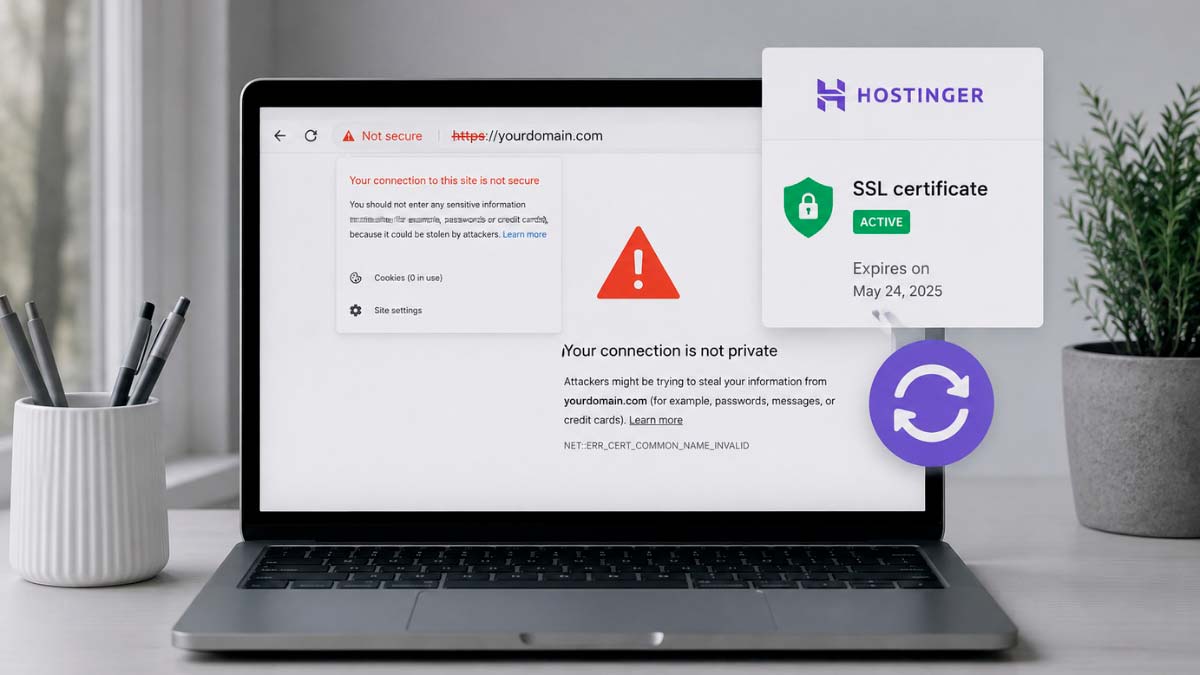
Most SSL troubleshooting guides are written for a first-time installation, and they cover the same handful of causes: mixed content, an unpointed domain, a broken certificate chain. A renewal failure is a different problem with different likely causes, precisely because everything about the site’s configuration was already working correctly before the renewal happened. Something specific changed between the original working installation and the failed renewal attempt, and finding that change is usually faster than working through a generic first-install checklist that assumes nothing was ever configured correctly in the first place.
This distinction matters more than it might first appear, because a site owner searching for help after a renewal failure typically finds articles written around the more common first-installation scenario, follows advice aimed at a completely different starting condition, and ends up checking things that were never actually broken in the first place. Confirming the domain is pointed to Hostinger, for instance, is genuinely useful advice for someone setting up SSL for the first time, but is almost never the actual cause of a renewal failure on a site that has been live and correctly pointed for months or years already. Time spent re-verifying settings that were never the problem is time not spent finding the setting that actually changed and actually caused the failure.
This article covers exactly that renewal-specific scenario on Hostinger: what actually happens during the Lifetime SSL auto-renewal process, the specific configuration changes that block a renewal even though the original installation succeeded months or years earlier, how a Cloudflare proxy interferes with renewal validation in a way it may not have during the original install, browser and DNS caching that makes a successfully renewed certificate still appear broken to visitors, and the exact hPanel steps to force a clean reinstallation when renewal genuinely failed rather than just appearing to. If you’ve already worked through a general SSL troubleshooting checklist without success, this is written specifically for the renewal case that checklist was not designed to cover.
Why renewal fails differently than a first installation
Hostinger’s Lifetime SSL, like most free SSL implementations built on Let’s Encrypt or a similar automated certificate authority, requires periodic domain validation to prove ongoing control of the domain before issuing a renewed certificate, typically every 90 days behind the scenes even though the certificate itself may be presented to visitors as valid for a longer period. This validation step succeeded automatically during the original installation because the DNS and hosting configuration was, by definition, already correctly set up to pass it. A renewal failure almost always traces back to something in that configuration changing after the original successful installation, not to some default failure of the automated renewal process itself.
It helps to understand what “domain validation” actually checks, since the term gets used loosely across different SSL troubleshooting resources. In practice, an automated certificate authority proves control of a domain by requesting that a specific file be reachable at a specific path on the domain, or by requesting that a specific DNS record be present, and then checking that the response matches what only the legitimate domain owner could have placed there. This check happens quickly, automatically, and invisibly to the site owner during a successful renewal, which is exactly why a renewal failure feels so confusing: nothing about the site’s day-to-day operation changed from the owner’s perspective, yet the validation check that used to pass silently is now failing silently, with no obvious symptom until a visitor eventually reports the warning or the site owner happens to check the certificate status directly.
The most common change that silently breaks a previously working renewal is the later addition of a CAA record to the domain’s DNS zone. CAA, or Certification Authority Authorization, records specify which certificate authorities are permitted to issue certificates for a domain, and they are sometimes added later by a domain owner, an IT consultant, or even a different hosting or security service the domain was migrated to and from, often without anyone realizing the record would eventually affect Hostinger’s own automated renewal process. Hostinger’s Lifetime SSL does not require a CAA record at all, and any CAA record present on the domain’s zone can block the renewal’s automated validation step even though the original installation completed successfully before that CAA record existed. This is precisely the kind of change that is easy to make months after the original SSL setup, entirely unrelated to any SSL work, and then forgotten by the time a renewal quietly fails much later.
CAA records are frequently added for reasons that have nothing to do with the site’s day-to-day SSL certificate at all. A business email provider, a separate security auditing tool, or even well-intentioned advice from an unrelated tutorial recommending CAA records as a general security hardening measure can all result in a CAA record appearing on a domain’s DNS zone long after the original Hostinger SSL installation succeeded. None of these additions are inherently wrong in isolation, and CAA records genuinely do serve a legitimate security purpose by restricting which certificate authorities can issue for a domain. The problem specifically arises when the CAA record’s authorized issuer list does not include the certificate authority Hostinger’s automated renewal actually uses, silently blocking every future renewal attempt from that point forward until the record is either removed or corrected to include the correct authorized issuer, a fix that takes only a minute or two once the actual cause has been correctly identified but can otherwise go unnoticed for an entire renewal cycle since nothing about the site’s day-to-day appearance changes until the certificate’s original validity period actually runs out.
A second common change is the addition of a duplicate A record, often introduced when a domain is connected to a marketing tool, a website builder integration, or an email service that asks for an A record pointing to its own infrastructure. Multiple A records for the same domain or subdomain create exactly the kind of validation ambiguity Hostinger’s automated renewal process cannot resolve on its own, since Let’s Encrypt-style validation checks depend on the domain resolving unambiguously to the server requesting the certificate. Unlike the original installation, where the domain’s DNS zone typically contains nothing but the hosting provider’s own required records, a domain that has been live for months or years frequently accumulates additional DNS entries added for unrelated reasons, any one of which can silently interfere with a renewal that would otherwise succeed automatically.
Identifying a duplicate or conflicting A record does not require advanced technical skill, only patience in reviewing the DNS zone file directly through hPanel’s own DNS management section, or through an independent DNS lookup tool, and comparing what is actually present against what should be present for a straightforward single-server hosting setup. A domain that should have exactly one A record pointing to Hostinger’s hosting IP address, but instead shows two or three A records pointing to different IP addresses added at different points over the domain’s history, is a strong candidate for exactly this kind of renewal-blocking conflict, and removing the extraneous records, keeping only the one that correctly points to the current hosting provider, resolves the ambiguity for any future renewal attempt going forward.
The Cloudflare proxy problem that only shows up at renewal, not installation
A domain using Cloudflare as a proxy, sometimes called the orange cloud setting, routes all traffic through Cloudflare’s own network before it ever reaches Hostinger’s servers. This is a common setup for a site that added Cloudflare for its CDN and additional DDoS protection benefits after the site was already live on Hostinger with SSL already correctly installed and working. The original SSL installation was completed before Cloudflare’s proxy was enabled, so it succeeded without ever encountering this conflict. The next scheduled renewal, however, now has to complete its domain validation step while Cloudflare’s proxy sits directly in the traffic path, and Hostinger’s automated validation request may never actually reach the origin server the way it did during the original installation, since Cloudflare’s proxy is now intercepting and rerouting that traffic first.
This sequence of events, working perfectly at installation and then failing at the first renewal after Cloudflare was added, is confusing enough that it is worth spelling out the timeline explicitly. A site launches on Hostinger, SSL installs successfully because nothing is intercepting traffic yet. Weeks or months later, the site owner or their agency adds Cloudflare for performance and security reasons entirely unrelated to SSL, enabling the proxy without realizing it will eventually interact with SSL renewal specifically. The site continues working normally for months, since the existing certificate remains valid and nothing about day-to-day traffic serving changes when Cloudflare’s proxy is active. Then, at the next scheduled renewal cycle, the validation step that used to reach Hostinger’s server directly now hits Cloudflare’s proxy first, the validation fails silently, and the certificate eventually shows as expired or inactive with no obvious link back to a Cloudflare change made months earlier that nobody was thinking about at the time the SSL warning appeared.
This is the single most common renewal-specific cause that a generic SSL troubleshooting guide, written primarily around first-time installation scenarios, will not mention at all, precisely because it only manifests as a problem at renewal time for a site whose Cloudflare integration was added after the original successful SSL setup. The practical fix is temporarily setting the domain’s A record in Cloudflare’s DNS dashboard to “DNS only,” disabling the proxy specifically for the duration of the renewal, allowing Hostinger’s validation request to reach the origin server directly and complete successfully, and then re-enabling the proxy once hPanel shows the certificate status as Active again. Leaving the proxy permanently disabled defeats the purpose of having added Cloudflare in the first place, so this should be treated as a temporary window around each renewal cycle rather than a permanent configuration change, and setting a calendar reminder tied to the certificate’s known renewal cadence avoids needing to rediscover this fix from scratch every time it recurs.
For an agency managing multiple client sites that all use both Hostinger and Cloudflare together, this specific interaction is worth documenting once as a standard operating procedure rather than relearning it independently for each client site the first time a renewal quietly fails. A simple internal note stating that any site running Cloudflare proxy on top of Hostinger SSL needs the proxy temporarily disabled around each renewal window, along with the approximate renewal date calculated from the original installation date plus roughly 90 days, turns what would otherwise be a recurring surprise into a predictable, scheduled maintenance task handled proactively before a client ever notices a warning on their own site.
Related comparisons on this site:
1. HostGator vs iPage shared hosting comparison
2. NameHero vs Hostinger performance compared
3. HostArmada vs Hostinger value comparison
4. Namecheap vs Porkbun domain registration compared
5. Hosting account exceeded inode limit
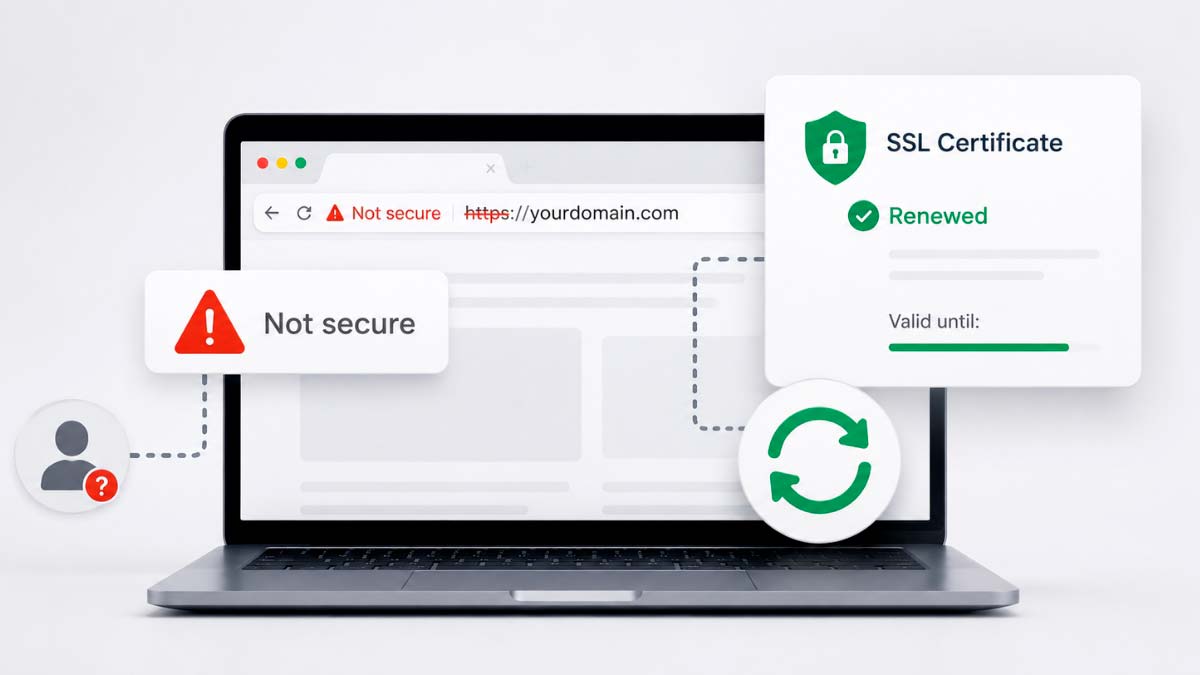
Why the certificate can be correctly renewed and still show "not secure" to visitors
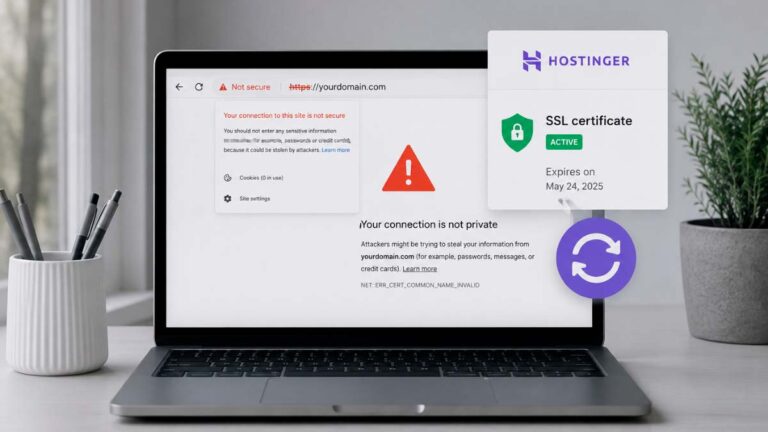
It is entirely possible for hPanel to show a certificate’s status as Active, meaning the renewal itself genuinely succeeded on Hostinger’s side, while specific visitors continue seeing a “not secure” warning in their own browser. This gap between server-side success and visitor-side warning is almost always caused by caching somewhere between the renewed certificate and the browser displaying it, rather than any actual ongoing problem with the certificate itself.
Browsers cache SSL certificate information locally to avoid re-validating a certificate on every single page load, and this cache does not always clear itself immediately the moment a certificate is renewed server-side. A visitor who loaded the site recently, shortly before or during the renewal window, may have a stale certificate cached locally that continues showing as expired or invalid until that browser-side cache naturally clears or is manually cleared through the browser’s own SSL state settings. This affects individual visitors inconsistently rather than universally, which is precisely why a site owner testing the site themselves, from a browser that has not recently cached the old certificate, often sees everything working correctly while specific visitors continue reporting the warning for a period afterward.
This inconsistency is itself a useful diagnostic signal rather than just a source of confusion. A certificate that is genuinely still broken on the server side produces the warning consistently, for every visitor, on every browser, every time. A certificate that has genuinely renewed successfully but is still showing stale warnings to some visitors produces an inconsistent pattern instead: some visitors report the warning while others report the site working perfectly, often correlating with when each visitor last loaded the site relative to the renewal timing, or which specific browser and device they are using. When a site owner receives mixed reports, some visitors seeing a warning and others not, that inconsistency itself is a strong signal pointing toward caching rather than an ongoing server-side failure, and is worth communicating to a client or team reporting the issue so they understand the fix is already in progress rather than assuming the problem has not been addressed at all, which can otherwise trigger an unnecessary escalation or repeated support requests over what is ultimately a self-resolving timing issue rather than an open technical problem still awaiting a fix.
DNS caching introduces a similar but distinct delay. If the renewal process happened alongside any DNS change, such as the CAA record removal or A record cleanup described earlier, that DNS change itself needs to propagate globally before every visitor’s own DNS resolver reflects the corrected configuration, a process Hostinger and most providers note can take up to 24 hours in less common cases even though most propagation completes considerably faster in practice. A visitor whose internet service provider or DNS resolver has not yet picked up the corrected DNS record may still be routed in a way that triggers a certificate mismatch warning, entirely independent of whether the certificate itself was successfully renewed on Hostinger’s servers, which is precisely why the same fix can appear to work for one visitor testing from their home connection while a colleague testing from a different network or a different ISP continues seeing the outdated warning for a longer stretch of time before their own resolver eventually catches up with the corrected record.
Understanding roughly how DNS propagation actually works helps set realistic expectations here rather than assuming something is broken simply because the fix has not reached every visitor instantly. DNS records carry a Time To Live value, commonly abbreviated TTL, which tells other DNS resolvers around the internet how long they are permitted to cache a given record before checking for an updated version again. A record with a TTL of several hours means any resolver that cached the old, incorrect version before the fix was made will continue serving that cached, outdated answer until its own TTL expires, regardless of how quickly the correct record was actually published on Hostinger’s side, which is the underlying mechanical reason a fix that is technically already live can still take time to become visible everywhere. Lowering the TTL on DNS records that are expected to change, before making a planned change rather than after, is a genuinely useful practice for anyone who anticipates needing DNS changes to propagate quickly, though this requires planning ahead of the change rather than being something that helps after the fact once a slow-propagating record is already the active bottleneck, which is why it is worth adopting as a default habit for any domain under active management rather than a fix reached for only after a specific problem has already appeared.
The practical diagnostic step that separates a genuine ongoing renewal failure from a caching delay is checking the site from a completely fresh browser session, an incognito or private window with no cached history for the domain, ideally from a different network than the one most commonly used to manage the site, such as a mobile connection rather than the office or home network the renewal work was performed from. If the site loads securely from that fresh, independent session, the renewal succeeded and any remaining reports from specific visitors are a caching or propagation delay that will resolve on its own within a day, rather than a configuration problem requiring further troubleshooting. Testing from a genuinely different network matters specifically because DNS caching often happens at the network or ISP resolver level rather than purely within an individual browser, so a fresh incognito window on the same network that has already cached an outdated DNS answer will not necessarily reveal the difference the way testing from an entirely separate network connection will.
A useful secondary check, beyond simply loading the site in a fresh browser session, is running the domain through an independent SSL diagnostic tool that checks the certificate directly against the server rather than relying on any single visitor’s own browser and network conditions. These tools connect to the domain from their own infrastructure, bypassing any caching that might be affecting a specific visitor’s local network entirely, and report the actual current state of the certificate as seen from an independent vantage point. A domain that passes this kind of independent check cleanly, while individual visitors still report warnings, is strong confirmation that the underlying certificate is genuinely fine and the remaining reports are a caching artifact working its way through the wider internet’s DNS resolvers rather than an unresolved server-side problem still requiring further action.
Forcing a clean reinstallation when renewal genuinely failed
Once the DNS-level causes above have been checked and ruled out, or corrected, and the certificate is still showing as Inactive or Failed in hPanel rather than simply appearing broken due to caching, a manual reinstallation through hPanel resolves the great majority of remaining cases. From hPanel, navigating to Websites, selecting the affected site’s Dashboard, then Security followed by SSL, shows the current certificate status directly. A status of Failed or Inactive at this point, after DNS causes have already been addressed, calls for triggering a fresh installation rather than waiting for the next automated renewal attempt, since a renewal that has already failed once due to a DNS conflict will typically continue failing on the same schedule until the underlying DNS issue is both fixed and a fresh installation is manually triggered to pick up the corrected configuration immediately rather than waiting for the next scheduled attempt.
It is worth checking the specific status label hPanel displays carefully, since Hostinger’s own interface distinguishes between a few different states that call for different responses. An Installing status simply means the process is still in progress and typically resolves within the two-hour window Hostinger’s own documentation describes, requiring nothing beyond waiting and rechecking rather than any intervention. A Failed or Inactive status, by contrast, indicates the automated process has genuinely stopped and will not simply complete on its own with more time, which is the specific condition that calls for the manual reinstallation steps described here rather than passive waiting. Confusing these two states, attempting a manual reinstallation while the certificate is actually still mid-process as Installing, can occasionally introduce a race condition between the automated process and the manual trigger, so confirming the exact status label before taking action is a small step worth not skipping, particularly for anyone new to hPanel’s specific terminology and status indicators.
For a site using a CDN or proxy service, confirming that service is set to bypass mode during this manual reinstallation attempt, exactly as described in the Cloudflare-specific section above, is essential, since triggering a manual reinstallation while the same proxy conflict that caused the original failure is still active will simply reproduce the same failure a second time. Once the reinstallation completes and hPanel shows an Active status, forcing HTTPS through the same SSL section ensures all traffic redirects to the secure version of the site going forward, and testing from the fresh browser session described in the previous section confirms the fix has actually taken effect for visitors rather than only appearing correct in hPanel’s own dashboard view.
If a manual reinstallation still fails after DNS causes have genuinely been ruled out and the CDN proxy has been correctly bypassed, the domain length constraint is worth a final check, since it is easy to overlook and does not always produce an obviously related error message. SSL certificates carry a technical constraint on total domain name length, including subdomains and the extension itself, that must stay at or under 64 characters, and a subdomain that has grown unusually long, perhaps through a descriptive naming convention adopted for internal organizational reasons, can silently exceed this limit in a way that blocks installation entirely regardless of how correctly every other setting is configured. This is a rare cause in practice, since most business domains and reasonable subdomains fall well under this length, but it is worth ruling out specifically when every other more common cause has already been checked and corrected without resolving the issue.
For an agency responsible for multiple client sites, building a short standard checklist covering these renewal-specific causes in a fixed order, checking CAA records first, then duplicate A records, then CDN proxy status, then domain length as a final rare-case check, turns what could otherwise be an hour of unstructured troubleshooting per incident into a five-minute, mostly mechanical process once the pattern has been seen and documented a first time. Given how consistently these same few causes recur across different client sites and different renewal cycles, this checklist approach pays for itself quickly for any agency managing more than a handful of Hostinger-hosted client domains over time, and turns a recurring source of client-facing anxiety into a routine, well-understood maintenance task the team can resolve confidently and quickly whenever it next appears on any given account.
Sources and references consulted: certificate renewal cycle, CAA validation, Hostinger’s SSL documentation, DNS record management, DNS only mode, browser SSL cache, clear SSL state, incognito browsing, force HTTPS, ssllabs.com, whatsmydns.net, hostinger.com.
Frequently asked questions about SSL certificate
Usually a DNS change made after the original installation, such as a new CAA record, a duplicate A record, or a Cloudflare proxy enabled later, blocking the automated renewal validation.
No. Hostinger's Lifetime SSL does not require a CAA record, and any CAA record present on the domain can block automatic renewal validation even if installation once succeeded.
Yes, temporarily. Set the domain's A record to DNS only in Cloudflare during renewal, then re-enable the proxy once hPanel shows the certificate as Active again.
The renewal itself is usually near-instant once validation succeeds. DNS-related fixes can take up to 24 hours to propagate fully, though most resolve faster in practice.
Likely browser or DNS caching. Test from a fresh incognito window on a different network to confirm whether the renewal succeeded or the certificate is genuinely still broken.
In hPanel, go to Websites, then Security, then SSL. Select the affected domain and choose Reinstall, after confirming any CDN proxy is set to bypass mode first.
Yes. Multiple A records for the same domain create validation ambiguity that can block automated renewal, even if the original installation succeeded with a single record in place.
Only after the certificate itself is confirmed Active. Forcing HTTPS redirects traffic to the secure version but does not fix an underlying failed or inactive certificate.